How Do I Build a Dome in Minecraft?
You build a dome by stacking circular layers that get progressively smaller as you go up.
Understand the Circle Stacking
A dome is simply the top half of a sphere. For example, a dome with a radius of 10 starts with a base circle of 21 blocks wide (Y=0) and gets narrower at each layer, ending with a small 3x3 square at the top (Y=10). Stacking these slices accurately lets you build a dome in Minecraft with perfect symmetrical curves.

Use Grid Guides
Select your radius and open the Layer View. Start from the bottom layer and place your block outline. Once the outline matches the curved roof blueprints, move up to the next layer and place blocks on grid coordinates relative to the center block.
What is the Difference Between a Dome and a Dome Roof?
A standard dome is open at the bottom so you can see inside, while a dome with a floor includes a solid flat circular base at the bottom layer.
The Flat Ceiling Cap
If you build a hollow dome roof of radius 8, the generator includes a flat circle floor at Y=0 requiring 197 blocks. This dome with a floor separates your tower's top room from the empty dome space above, acting as a structural ceiling cap. It's the best option to construct a dome roof for multi-story towers.
Hollow Open-Air Designs
Standard domes have no floor at the base level, meaning you can look straight up into the curved ceiling. These hollow dome templates work perfectly for planetariums, temple halls, and massive base lobbies where you want a spacious, open atmosphere.
How Many Blocks Do I Need for a Glass Biodome?
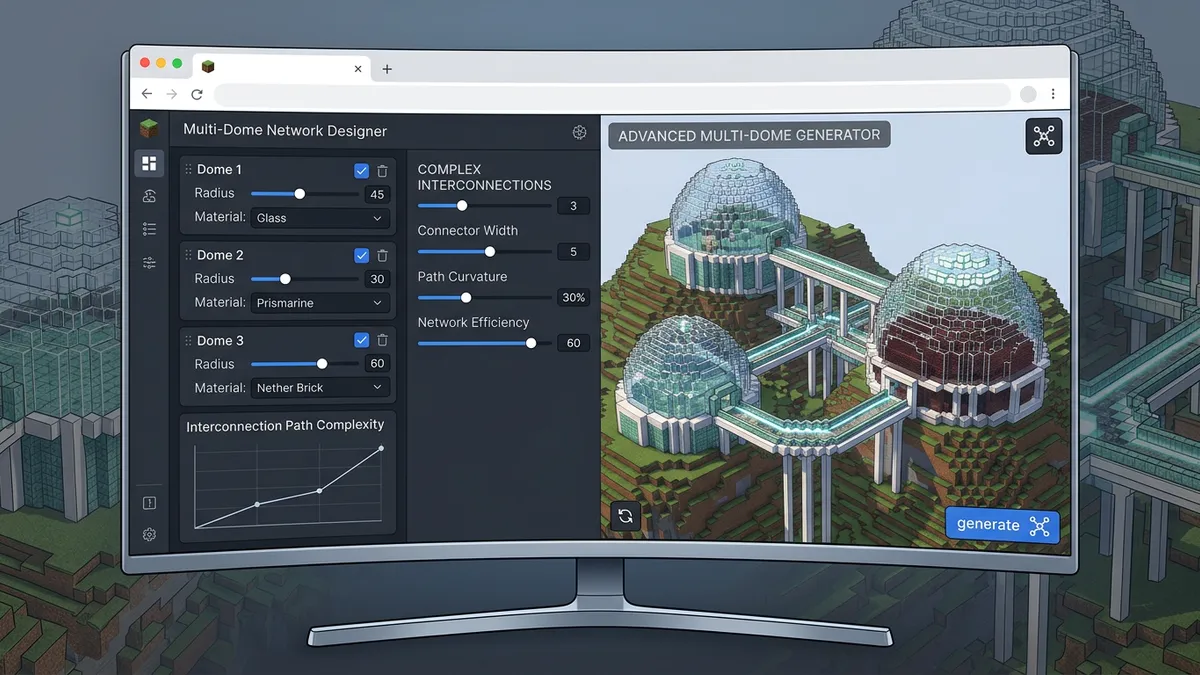
You determine your block budget by multiplying the dome dimensions and checking the resource calculator in the sidebar.
Count Your Resources
For example, a glass dome with a radius of 15 blocks requires exactly 1,360 blocks of glass if built hollow. That's about 21 stacks of glass blocks. Knowing these counts lets you build a glass biodome without running out of materials mid-build, saving you time spent on sand collection.
Choose Hollow vs Filled
Always build your biodomes in hollow mode. A solid dome of radius 15 requires over 7,500 blocks, which takes over five times longer to build and wastes valuable interior space. Use the resource block calculator to verify your layout stats before you gather building materials.
Can I Use Commands to Spawn Domes in Minecraft?
You can use WorldEdit commands to generate domes instantly if you have server admin permissions.
WorldEdit Dome Commands
If you use the WorldEdit mod, standing on your tower roof and typing //hsphere glass 10 spawns a perfect hollow glass sphere around you, after which you simply cut the bottom half. You can also use the WorldEdit dome command syntax like //hpyramid or copy the exact command patterns from our Commands tab to spawn domes instantly.
Coordinate Blueprints
If you don't use mods, copy the vanilla fill command blocks from the generator. These commands let you spawn the basic circular frames at specific coordinates, helping you copy block patterns into your world with ease.
Step-by-Step Instructions
- 1Open the Minecraft Dome Generator in your browser.
- 2Set the radius (1 to 20 blocks) to define your dome width.
- 3Choose your style: Dome (no floor), Dome + Floor, or Full Sphere.
- 4Toggle between Hollow and Filled modes depending on your resource budget.
- 5Open the Layer View tab to examine the circular block coordinates.
- 6Start building from the bottom layer (Layer 1) and align blocks around the center.
- 7Progress layer-by-layer up to the top cap block.
- 8Use the 3D Preview tab to inspect your curves and ensure proper shape.