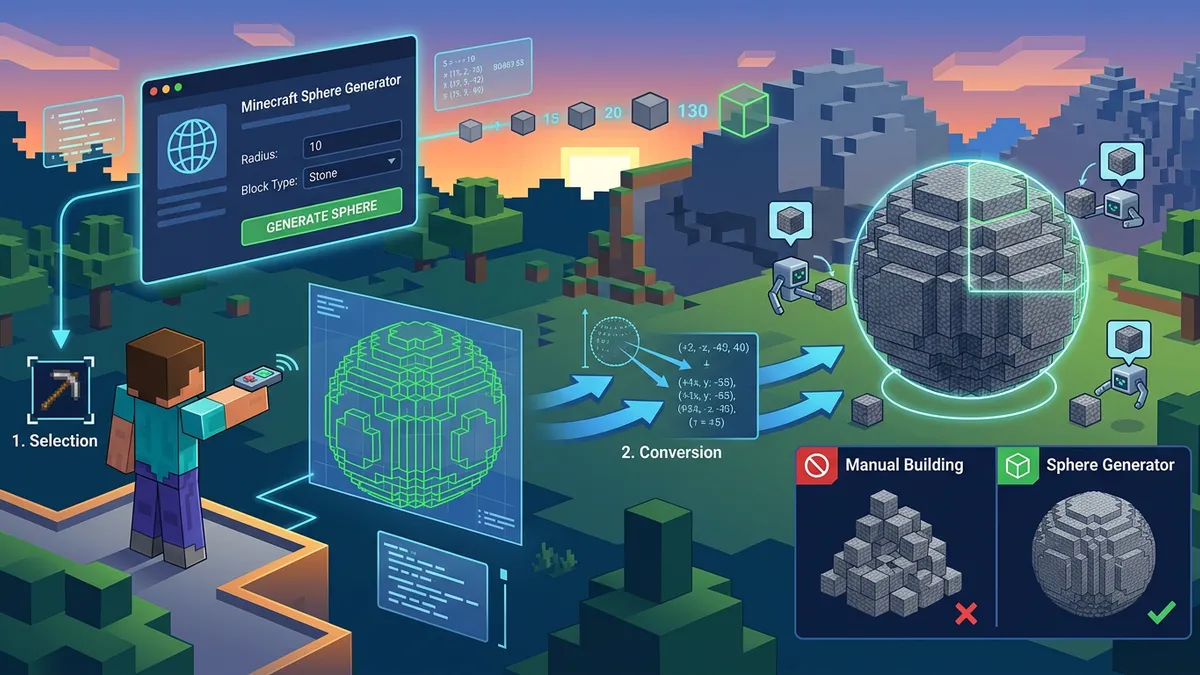
Minecraft Sphere Generator

Minecraft Sphere Generator

Create perfect voxel spheres layer by layer

GamingFreeNo Signup
4.7(516 reviews)
All Tools

Loading tool...

About Minecraft Sphere Generator

Build perfect spheres in Minecraft with this free online generator. Choose your radius (1-20 blocks), select solid or hollow mode, enable half-sphere for domes, and browse each layer individually. Includes an interactive 3D preview, WorldEdit and vanilla commands, PNG export for each layer, and exact block counts. Works for Java Edition and Bedrock Edition — no mods required.

Minecraft Sphere Generator Features

  • Radius 1-20
  • Solid/Hollow mode
  • Half-sphere (hemisphere)
  • Layer-by-layer browser
  • 3D interactive preview
  • WorldEdit & vanilla commands
  • Block count stats
  • PNG download per layer
  • Copy layer pattern
  • Preset radius buttons
Building a sphere in Minecraft is one of the hardest geometry challenges players face. Unlike circles (which are 2D), a sphere requires placing blocks on multiple Y-levels with different diameters at each layer. Our free Minecraft Sphere Generator solves this by giving you an exact layer-by-layer blueprint, an interactive 3D preview, and ready-to-paste WorldEdit commands. Whether you need a solid globe, a hollow shell, or a half-sphere dome, this tool handles the math so you can focus on building.

How to Use the Minecraft Sphere Generator

Minecraft Sphere Generator showing a layer-by-layer voxel sphere blueprint in the browser

Step 1 — Set Your Radius

Use the Radius slider (1-20 blocks) or click a preset button (3, 5, 8, 10, 12, 15, 18, 20) on the sidebar. The tool instantly calculates the total block count and generates every layer of your sphere.

Step 2 — Choose Your Shape

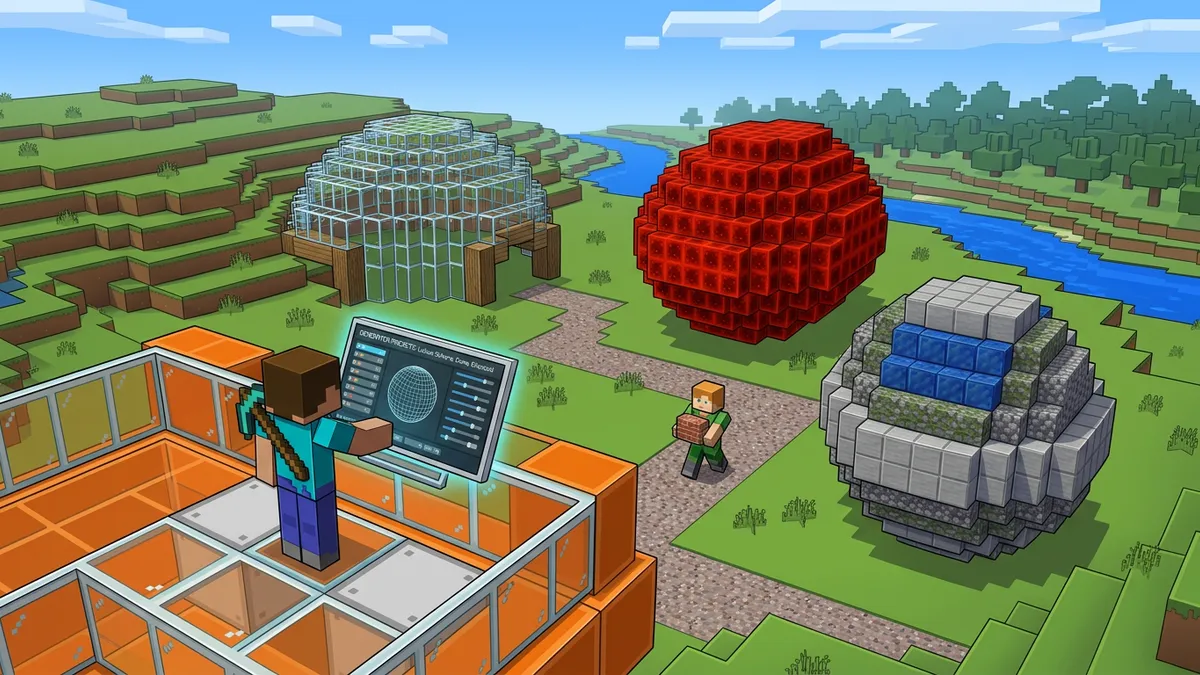
Pick between a full Sphere or a Half Sphere (hemisphere). A hemisphere is perfect for domes, planetariums, or igloo builds. Toggle between Hollow (shell only — great for bases) and Filled (solid block) modes.

Step 3 — Browse Layers

Switch to the Layer View tab and drag the layer slider to see the cross-section at each Y-level. The canvas shows exactly which blocks to place, using Minecraft-style textures. The table below lists every layer with its Y-offset, block count, and approximate diameter.

Step 4 — Preview in 3D

Open the 3D Preview tab for a fully rotatable voxel model of your sphere. Toggle between hollow and filled views, and enable auto-rotate for a cinematic look. This helps you visualize the final build before placing a single block.

Step 5 — Get Commands or Export

Use the Commands tab to copy WorldEdit sphere commands (//sphere, //hsphere) or see vanilla /fill equivalents. You can also download any layer as a PNG image or copy its ASCII text pattern.

Solid vs Hollow vs Half-Sphere: Which One Should You Use?

The three sphere modes serve very different purposes in Minecraft building:

ModeBest ForBlock Count (R=10)
SolidDecorative globes, planets, large terrain features~4,169
HollowBases, arenas, underwater habitats, event halls~1,256
Half SphereDomes, planetariums, roof caps, igloos~628 (hollow)

A hollow sphere uses roughly 30% of the blocks a solid one does, saving significant resources in survival mode. A half-sphere (hemisphere) halves that again.

When to Use Each Mode

Choose solid when you want a decorative element like a globe, planet, or terrain ball. Use hollow when you need interior space — the most common choice for bases and arenas. Select half sphere when building domes, observatory caps, or the roof of a circular building.

Layer-by-Layer Building Guide for Minecraft Spheres

Layer-by-layer strategy for building a Minecraft sphere from bottom to top

The key to building a perfect Minecraft sphere is working one layer at a time from bottom to top. Here is the recommended process:

Survival Mode Strategy

1. Count your materials first. The tool shows the exact block count — gather everything before you start. For a hollow radius-10 sphere, you need approximately 1,256 blocks.

2. Build a center column. Place a single column of blocks at your sphere's center, marking the bottom and top. This gives you a vertical reference.

3. Start at the bottom layer. Use the Layer View tab and set it to Layer 1. Place the blocks exactly as shown on the grid.

4. Work upward layer by layer. Move to the next layer and repeat. The diameter changes at each Y-level, which is why freehand building fails — the generator gives you the exact cross-section.

Creative Mode Strategy

If you have WorldEdit installed, use the Commands tab to get the exact //sphere or //hsphere command. Fly to your center point, run the command, and the entire sphere builds instantly. For vanilla creative, the layer-by-layer approach still works, but you can use /fill commands for each layer's bounding box.

Bedrock Edition Notes

The layer blueprints work identically on Bedrock Edition — the voxel grid is the same. WorldEdit commands are Java-only, but Bedrock players can use the visual grid or try the /fill command approach shown in the Commands tab under "Vanilla" mode.

Pro Tips for Building Spheres in Minecraft

  • Build quadrants, not full layers. A sphere is symmetrical on all 4 sides. Build one quarter of each layer, then mirror it. This cuts your counting work by 75%.
  • Use scaffolding blocks. Place dirt or scaffolding at the sphere's equator and poles as reference points before filling in details.
  • Light as you build. Place torches or sea lanterns inside every 12 blocks to prevent mob spawning in your hollow sphere.
  • Test at small radius first. Try radius 3-5 before committing to a radius 15+ build. This lets you practice the technique with fewer blocks.
  • Save a backup. Before starting a large sphere in survival, copy your world folder. One counting mistake at layer 15 can ruin hours of work.
  • Consider half-slab tricks. For spheres above radius 12, the curves become smoother, but you can use half-slabs and stairs on the outer shell to add even more detail.

Step-by-Step Instructions

  1. 1Open the Minecraft Sphere Generator — no download, login, or mods needed.
  2. 2Set your radius using the slider (1-20) or click a preset button.
  3. 3Choose Sphere or Half Sphere, then select Hollow or Filled mode.
  4. 4Browse layers in the Layer View tab to see each Y-level cross-section.
  5. 5Open the 3D Preview tab to visualize the complete sphere interactively.
  6. 6Copy WorldEdit commands from the Commands tab, or download layer PNGs.
  7. 7Open Minecraft and build your sphere layer by layer using the blueprints.

Minecraft Sphere Generator — Frequently Asked Questions

Is there a sphere generator mod for Minecraft?+

You don't need a mod — our Minecraft Sphere Generator runs entirely in your browser with no downloads. It gives you layer-by-layer blueprints that work in vanilla Minecraft. If you want automated in-game building, WorldEdit is the most popular mod, and our Commands tab generates the exact WorldEdit sphere commands for you.

How do I make a half sphere (hemisphere) in Minecraft?+

Click the 'Half Sphere' button in the Shape section of our generator. The tool will only show the top half of the sphere, which creates a dome shape. This is perfect for building planetariums, observatory domes, igloos, or roof caps. The block count is automatically halved.

Does this sphere generator work for Minecraft Bedrock Edition?+

Yes. The layer-by-layer blueprints work identically on both Java and Bedrock editions because the block grid system is the same. The WorldEdit commands in the Commands tab are Java-only, but Bedrock players can use the vanilla /fill commands or simply follow the visual grid layer by layer.

What's the difference between a circle generator and a sphere generator?+

A circle generator creates a 2D shape (one layer), while a sphere generator creates a full 3D structure with different circle diameters at each Y-level. Our Minecraft Sphere Generator includes the 3D Preview tab so you can see all layers stacked together.

Can I export the sphere as a schematic or litematica file?+

Currently, the tool exports individual layers as PNG images and provides WorldEdit commands. For schematic or litematica files, we recommend building the sphere in-game using our layer blueprints, then using the litematica mod or WorldEdit's //schem save command to export it.

Is Plotz free to use?+

Plotz is another Minecraft shape generator that is free. Our Minecraft Sphere Generator is also completely free, with no account required. We offer additional features Plotz doesn't have, including an interactive 3D preview, hemisphere (half-sphere) mode, and WorldEdit command generation.

Share this tool: