Minecraft Texture Generator

Minecraft Texture Generator

Design custom 16x16 Minecraft textures

GamingFreeNo Signup
4.9(842 reviews)
All Tools

Loading tool...

About Minecraft Texture Generator

Design custom Minecraft textures with this free online pixel art editor and texture pack maker. Create 16x16 or 32x32 block and item textures using brush, fill bucket, eraser, and eyedropper tools plus mirror symmetry, rotate, and 8 quick-start templates (Dirt, Stone, Wood Plank, Grass Block, Cobblestone, Sand, Netherrack). Preview your design on a real-time 3D isometric block before downloading. 54 colors organized by Minecraft material type — Wood, Stone, Dirt, Grass, Ore, Water, Nether, Sand. Export as PNG ready for Java or Bedrock resource packs. No download, no signup, 100% browser-based.

Minecraft Texture Generator Features

  • 16x16 and 32x32 canvas sizes
  • Brush, fill, eraser, and eyedropper tools
  • Mirror horizontal and rotate clockwise transforms
  • 8 quick-start texture templates
  • 3D isometric block preview
  • 54-color Minecraft material palette
  • Custom color picker
  • Undo history with Ctrl+Z
  • Grid overlay toggle
  • Keyboard shortcuts for every tool
  • Checkerboard transparency preview
  • PNG export for resource packs
  • Touch-friendly drawing
  • No download or signup
Custom textures are what make Minecraft resource packs unique — they give blocks, items, and mobs a completely new look that transforms the entire game. According to CurseForge, over 200,000 resource packs have been published by the Minecraft community, and every one of them started with someone designing pixel art at 16×16 resolution. Our free Minecraft Texture Generator is a browser-based pixel art editor and texture pack maker built specifically for Minecraft. Choose from 8 quick-start templates, draw with brush, fill, eraser, and eyedropper tools, preview your texture on a real-time 3D isometric block, and export directly to PNG for your Java or Bedrock resource pack — no download, no signup, no mods required.

How to Use the Minecraft Texture Generator

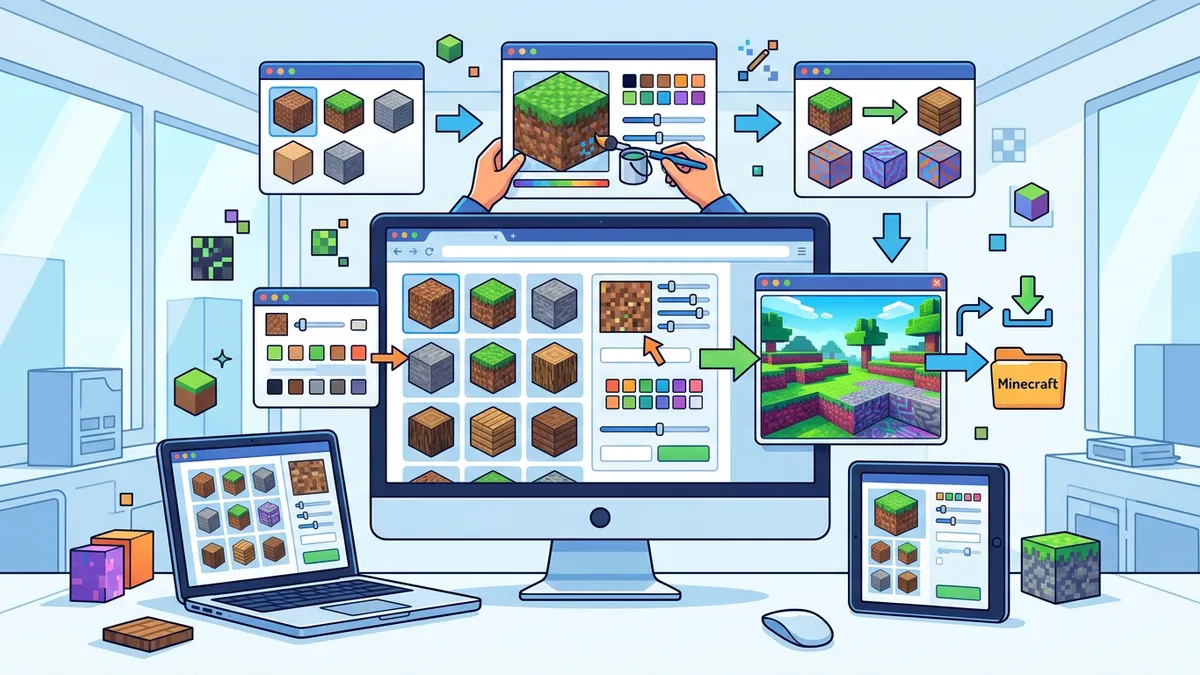
Minecraft Texture Generator pixel art editor showing brush tools, 3D preview, and Minecraft material palette

Our Minecraft texture editor provides everything you need to design custom block and item textures in your browser. Here's a step-by-step walkthrough:

Step 1 — Choose Your Resolution

Select 16x16 (standard Minecraft texture size used by all vanilla blocks since Alpha) or 32x32 (for high-detail textures that still tile seamlessly). Most community texture packs use 16x16 for performance — Mojang's JAPPA textures, introduced in Minecraft 1.14, maintained this resolution while adding significantly more detail through careful shading.

Step 2 — Start from a Template (Optional)

Skip the blank canvas — load one of 8 quick-start templates: Dirt, Stone, Wood Plank, Grass Block, Cobblestone, Sand, Netherrack, or Blank. Each template generates a procedurally randomized texture with authentic Minecraft color noise, giving you a professional starting point to customize.

Step 3 — Pick Your Tools

  • Brush (B) — Click or drag to paint individual pixels. The most-used tool for detailed work.
  • Fill Bucket (F) — Flood-fill a contiguous area with the selected color. Ideal for large sections.
  • Eraser (E) — Remove pixels to make them transparent. Essential for creating item textures, leaves, and glass.
  • Eyedropper (I) — Sample a color directly from the canvas. Click any pixel to copy its exact color to your brush — perfect for matching existing shades without guessing hex codes.

Step 4 — Choose Colors from Material Palettes

Our editor organizes 54 curated colors into 9 Minecraft material groups: Wood, Stone, Dirt, Grass, Ore, Water, Nether, Sand, and Black/White. Each group contains 6 shades that match vanilla Minecraft's actual color values. You can also use the custom color picker to select any hex color for unique texture styles.

Step 5 — Transform & Refine

Use Mirror Horizontal to create symmetrical textures instantly (great for crafting tables, furnaces, and decorated blocks). Rotate Clockwise reorients your design 90°. Toggle the Grid Overlay (G) on or off to see pixel boundaries clearly while drawing, and use Ctrl+Z to undo mistakes with full history support.

Step 6 — Preview in 3D

The 3D isometric block preview renders your texture on a three-sided Minecraft block in real time as you draw. This shows exactly how your texture will look in-game with natural lighting on the top, right, and left faces — no need to load Minecraft to check your work.

Step 7 — Download PNG

Click Download PNG to save your texture at the exact pixel resolution (16x16 or 32x32). The file exports with proper transparency support, ready to drop directly into your resource pack's textures/block/ or textures/item/ folder.

How to Create a Minecraft Resource Pack with Custom Textures

Once you've designed and downloaded your custom textures, the next step is packaging them into a Minecraft resource pack (also called a texture pack). Here's the complete guide for both editions:

Java Edition Resource Pack (1.6.1+)

Java Edition resource packs follow a specific folder structure that Minecraft reads automatically. According to the Minecraft Wiki, the pack format version must match your game version for compatibility.

  1. Navigate to .minecraft/resourcepacks/ and create a new folder (e.g., MyCustomPack)
  2. Inside that folder, create a pack.mcmeta file:
    {"pack": {"pack_format": 34, "description": "My Custom Texture Pack"}}
    (Use pack_format 34 for Minecraft 1.21.4+, 15 for 1.20.x, 9 for 1.19.x)
  3. Create the folder path: assets/minecraft/textures/block/
  4. Place your downloaded PNG inside, named to match the block you want to replace:
    stone.png replaces Stone
    grass_block_top.png replaces the top face of Grass Blocks
    oak_planks.png replaces Oak Planks
    diamond_ore.png replaces Diamond Ore
  5. For item textures, use the path assets/minecraft/textures/item/ instead (e.g., diamond_sword.png)
  6. Launch Minecraft, go to Options → Resource Packs, and move your pack to the Active list

Bedrock Edition Resource Pack

Bedrock Edition (Windows 10, Xbox, PlayStation, Switch, Mobile) uses a slightly different structure with manifest.json instead of pack.mcmeta:

  1. Create a folder for your pack
  2. Add a manifest.json with a unique UUID, format version [1, 0, 0], and "type": "resources"
  3. Place block textures in textures/blocks/ (note: "blocks" plural, not "block")
  4. Place item textures in textures/items/
  5. Create a textures/terrain_texture.json to map texture files to block IDs
  6. Import the pack through Minecraft Settings → Storage → Resource Packs

pack.mcmeta Format Versions Reference

Minecraft Versionpack_format
1.21.4+34
1.21–1.21.322–34
1.20.5–1.20.632
1.20.3–1.20.422
1.20–1.20.215
1.19.413
1.19–1.19.39–12

Pixel Art Design Tips for Custom Minecraft Textures

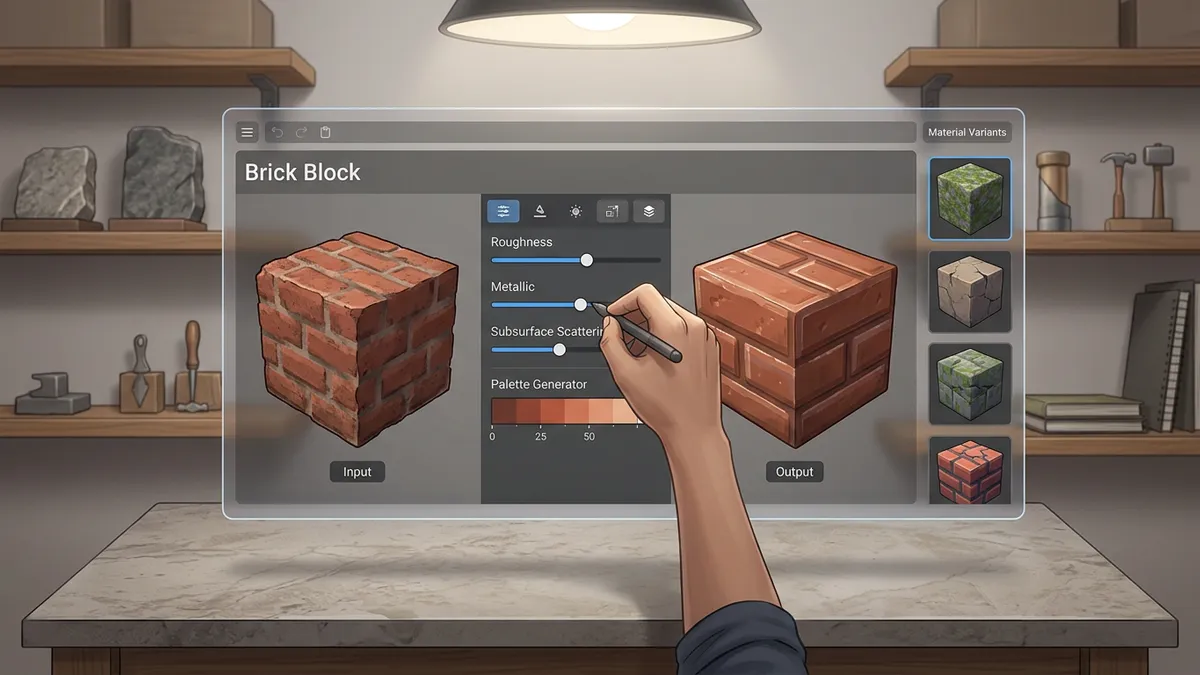
Examples of custom Minecraft textures showing different block styles and shading techniques

Creating convincing Minecraft pixel art at 16×16 resolution is a skill that improves with practice. Professional texture artists like JAPPA (who redesigned all of Minecraft's default textures for version 1.14) use specific techniques to make 256 pixels look incredibly detailed. Here are the essential principles:

  • Use 3-5 shades per material — Minecraft's vanilla textures average 4 colors per block. For example, Stone uses #808080, #8f8f8f, #767676, and #6b6b6b. Too many colors look noisy; too few look flat.
  • Add pixel-level noise — Natural blocks like dirt, stone, and wood have randomly scattered light and dark pixels. This "noise" creates visual texture at small scales. Use the Eyedropper tool (I) to sample and scatter existing shades randomly.
  • Apply directional shading — Add darker pixels along one edge (typically bottom-right) and lighter pixels on the opposite edge. This creates a subtle 3D illusion that makes blocks look more volumetric in-game.
  • Design for tiling — Every block texture repeats in a grid. Ensure the left edge blends seamlessly with the right edge, and the top with the bottom. Use the Mirror tool to create perfectly symmetrical patterns, then break the symmetry slightly for a natural look.
  • Test at actual size — Your texture displays at just 16×16 pixels in-game, covering roughly 32×32 screen pixels at default resolution. Zoom out regularly to verify readability at the native scale.
  • Study the vanilla palette — Extract colors from Minecraft's default textures using the Eyedropper tool. Staying within the vanilla color range ensures your custom textures blend naturally with unmodified blocks.
  • Use templates as foundations — Load one of our 8 templates (Dirt, Stone, Grass Block, etc.) and modify it rather than starting from scratch. Each template generates authentic Minecraft-style noise patterns that serve as a professional starting point.

How to Create Seamless Tileable Textures for Minecraft

A tileable texture (also called seamless or repeating) is critical for Minecraft blocks because every block face repeats the same 16×16 image. When blocks are placed side by side, any edge mismatch creates visible "seams" that break immersion. Here's how to make pixel-perfect tileable textures:

The Mirror Method

Use the Mirror Horizontal tool in our editor to instantly create left-right symmetry. Then manually break up the mirror line with small random pixel changes — this gives you a texture that tiles perfectly horizontally while still looking natural.

Edge Matching

The most important principle: Row 1 must visually connect with Row 16 and Column 1 must connect with Column 16. When you draw near edges, always check that the color transitions match the opposite edge. Our grid overlay helps you see exact pixel positions for edge alignment.

Pattern Interruption

Perfectly repeating patterns are more noticeable than random noise. After creating your base pattern, add 3-5 random "interruption" pixels that break the repetition. Stone textures, for example, use random darker pixels scattered across an otherwise uniform grey field.

Minecraft's Connected Textures

Some modded Minecraft setups use connected textures (via OptiFine or the Connected Textures Mod) that merge adjacent identical blocks into a single seamless surface. If you're designing for connected textures, you'll need to create additional border variants — typically a set of 47 tiles covering every possible neighbor combination. Our editor is ideal for creating each individual variant at the correct 16×16 resolution.

How to Create Animated Minecraft Textures

Minecraft supports animated textures through a simple frame-stacking system — a feature used by vanilla blocks like water, lava, fire, magma, and the nether portal. According to the Minecraft Wiki, animated textures use a single PNG file with frames stacked vertically, controlled by a .mcmeta animation file.

Animation File Format

For a 16×16 animated texture with 4 frames:

  1. Use our Texture Generator to create each frame individually at 16×16 resolution
  2. Stack all frames vertically into a single PNG (16 pixels wide, 64 pixels tall for 4 frames) using an image editor
  3. Create a .mcmeta file alongside the texture with the animation definition:
    {"animation": {"frametime": 5}}
    (frametime of 5 = each frame displays for 5 game ticks ≈ 0.25 seconds)

Advanced Animation Controls

You can specify individual frame timing and order using the frames array:

{"animation": {"interpolate": true, "frames": [{"index": 0, "time": 10}, {"index": 1, "time": 5}, {"index": 2, "time": 3}]}}

Setting "interpolate": true enables smooth transitions between frames (added in Minecraft 1.5), creating fluid animations like vanilla water and lava.

Common Animated Textures

Popular animation targets include: water and lava (flowing + still variants), fire, sea lanterns, prismarine, magma blocks, nether portals, soul fire, enchanting table runes, and custom ore glow effects. Each frame should only change by 1-2 pixels from the previous frame for smooth motion.

Minecraft Texture Generator vs Other Pixel Art Tools

Several tools exist for creating Minecraft textures. Here's how our free browser-based texture generator compares to popular alternatives:

FeatureOur Texture GeneratorAseprite ($20)GIMP (Free)MCreator (Free)
PriceFree, no signup$19.99 one-timeFreeFree
InstallationNone (browser-based)Desktop downloadDesktop downloadDesktop download
Minecraft Templates8 built-in templatesNoneNoneBasic presets
3D Block PreviewReal-time isometricNoNoIn-mod preview
Material Palette54 Minecraft colorsCustom palettesCustom palettesLimited palette
Animation SupportSingle framesFull animationManualAnimation maker
Best ForQuick block/item texturesProfessional pixel artComplex editingFull modding workflow

When to use our Texture Generator: You need a quick, free way to design Minecraft block and item textures without installing software. The built-in templates, 3D preview, and Minecraft-specific palette make it the fastest path from idea to resource pack.

When to use Aseprite: You're creating a full texture pack with dozens of textures, animated sprites, and need advanced features like layers, onion skinning, and animation timelines.

When to use GIMP: You need to perform complex image manipulation like resizing, batch processing, or creating texture atlases for mod development.

When to use MCreator: You're creating a complete Minecraft mod (not just textures) and want an integrated modding environment with texture creation built in.

Where to Share and Download Custom Minecraft Texture Packs

Once you've created your custom textures, you can share them with the wider Minecraft community across several major platforms:

  • CurseForge — The largest repository for Minecraft resource packs, hosting over 200,000 packs with millions of cumulative downloads. Upload your pack as a .zip file with the proper folder structure for maximum visibility.
  • Modrinth — A fast-growing open-source alternative to CurseForge, favored by the modding community for its clean interface and permissive policies. Supports both Java and Bedrock packs.
  • Planet Minecraft — One of the oldest Minecraft community sites, featuring texture pack showcases with screenshots and user reviews. Great for getting feedback on your designs.
  • Minecraft Marketplace (Bedrock) — For commercial texture pack creators, Microsoft's official Minecraft Marketplace allows you to sell Bedrock Edition resource packs. Requires application to the Minecraft Partner Program.
  • Reddit r/Minecraft and r/MinecraftTexturePack — Active communities where texture artists share work-in-progress textures and get feedback. Posting progress screenshots and requesting palette suggestions is common.

When sharing your texture pack, include comparison screenshots showing vanilla textures alongside your custom versions. Screenshots of recognizable builds (like a village or Nether portal room) using your pack help players evaluate the visual style before downloading.

Step-by-Step Instructions

  1. 1Open the Minecraft Texture Generator in your browser — no download, login, or mods needed.
  2. 2Select a canvas resolution: 16x16 (standard Minecraft) or 32x32 (high detail).
  3. 3Optionally load a quick-start template (Dirt, Stone, Wood Plank, Grass Block, Cobblestone, Sand, Netherrack).
  4. 4Choose a drawing tool: Brush (B), Fill Bucket (F), Eraser (E), or Eyedropper (I).
  5. 5Pick a color from one of 9 Minecraft material palette groups or use the custom color picker.
  6. 6Draw your texture by clicking or dragging on the pixel grid. Use Mirror and Rotate to transform your design.
  7. 7Preview your texture on the real-time 3D isometric block to see how it looks in-game.
  8. 8Use Ctrl+Z to undo mistakes, toggle the Grid overlay (G) for precision, and refine your design.
  9. 9Click Download PNG to save your texture at the exact resolution.
  10. 10Place the PNG file in your Minecraft resource pack folder and enable the pack in-game.

Minecraft Texture Generator — Frequently Asked Questions

What resolution should I use for Minecraft textures?+

Standard Minecraft textures are 16x16 pixels — this is the default resolution for all vanilla blocks, items, and mobs since the game's Alpha release. Use 32x32 for higher-detail textures, or 64x64 and 128x128 for HD resource packs (these require OptiFine or similar mods for best results). Our editor supports 16x16 and 32x32, which covers the vast majority of resource pack needs.

How do I add custom textures to a Minecraft resource pack?+

For Java Edition: create a folder in .minecraft/resourcepacks/ with a pack.mcmeta file, then place your PNG textures in assets/minecraft/textures/block/ (for blocks) or assets/minecraft/textures/item/ (for items). Name each file to match the block you're replacing (e.g., stone.png, diamond_ore.png). For Bedrock Edition: use a manifest.json and place textures in textures/blocks/ or textures/items/. Enable the pack in Minecraft's Resource Packs menu.

Can I create animated textures with this tool?+

Minecraft supports animated textures using a single PNG with frames stacked vertically, plus a .mcmeta animation control file. Our editor creates individual frames at the correct resolution — design each animation frame separately, then stack them vertically using an image editor like GIMP or Photoshop. Add a .mcmeta file alongside your texture with the animation properties (frametime, interpolation) to complete the animated texture.

Does transparency work in Minecraft textures?+

Yes — erased pixels export as fully transparent in the PNG. This is essential for creating items (swords, tools, food), decorative blocks (glass, leaves, flowers, iron bars), and overlay textures. The checkerboard pattern in our editor represents transparent areas. Minecraft reads the PNG alpha channel directly, so no additional configuration is needed.

Can I use this editor for Minecraft skins?+

Minecraft player skins use a specific 64x64 layout (or 64x32 for legacy format) where body parts are mapped to fixed regions on the texture sheet. Our editor is optimized for 16x16 and 32x32 block/item textures. For skins, you'd need a dedicated Minecraft skin editor that provides the body template overlay — though you can use our editor to design individual skin elements and transfer them.

What file format does Minecraft use for textures?+

Minecraft uses PNG format exclusively for all textures — blocks, items, entities, particles, GUI elements, and fonts. Our editor exports directly to PNG at the exact pixel resolution with proper alpha transparency support. No conversion or processing is needed; the downloaded file is ready to drop into your resource pack folder.

How do I make textures that tile seamlessly?+

Tileable textures require the left edge to match the right edge, and the top edge to match the bottom edge. Start with our Mirror Horizontal tool to create symmetry, then add small random variations to break the mirror line. Focus on making edge pixels transition naturally — if column 1 has a brown pixel, column 16 should have a similar brown shade. Load a template like Stone or Dirt to see how vanilla Minecraft handles noise-based seamless tiling.

Can I use generated textures commercially?+

Textures you create with our tool are entirely yours. You retain full ownership and can use them in commercial resource packs, mod projects, Minecraft Marketplace submissions, YouTube content, or any other purpose. Our editor is a tool — the creative output belongs to you, just like artwork made in any drawing application.

What are connected textures in Minecraft?+

Connected textures (CTM) merge adjacent blocks of the same type into a single seamless surface — for example, making a wall of glass panes look like one continuous sheet instead of a grid of individual blocks. This feature requires OptiFine or the Connected Textures Mod. Creating CTM textures involves designing up to 47 variant tiles for each block to handle every possible neighbor combination. Our editor is ideal for designing each 16x16 variant individually.

How do I create custom mob and entity textures?+

Mob and entity textures use different resolutions and UV layouts than blocks. For example, Creeper textures are 64x32, Zombie textures are 64x64, and the Ender Dragon uses a 256x256 sheet. These textures wrap around 3D models using specific UV mapping. While our editor focuses on block and item textures (16x16 and 32x32), you can use it to design individual texture sections and then composite them in a full image editor for entity work.

Share this tool: