Minecraft Map Art Generator

Minecraft Map Art Generator

Convert any image into Minecraft block art

GamingFreeNo Signup
4.2(591 reviews)
All Tools

Loading tool...

About Minecraft Map Art Generator

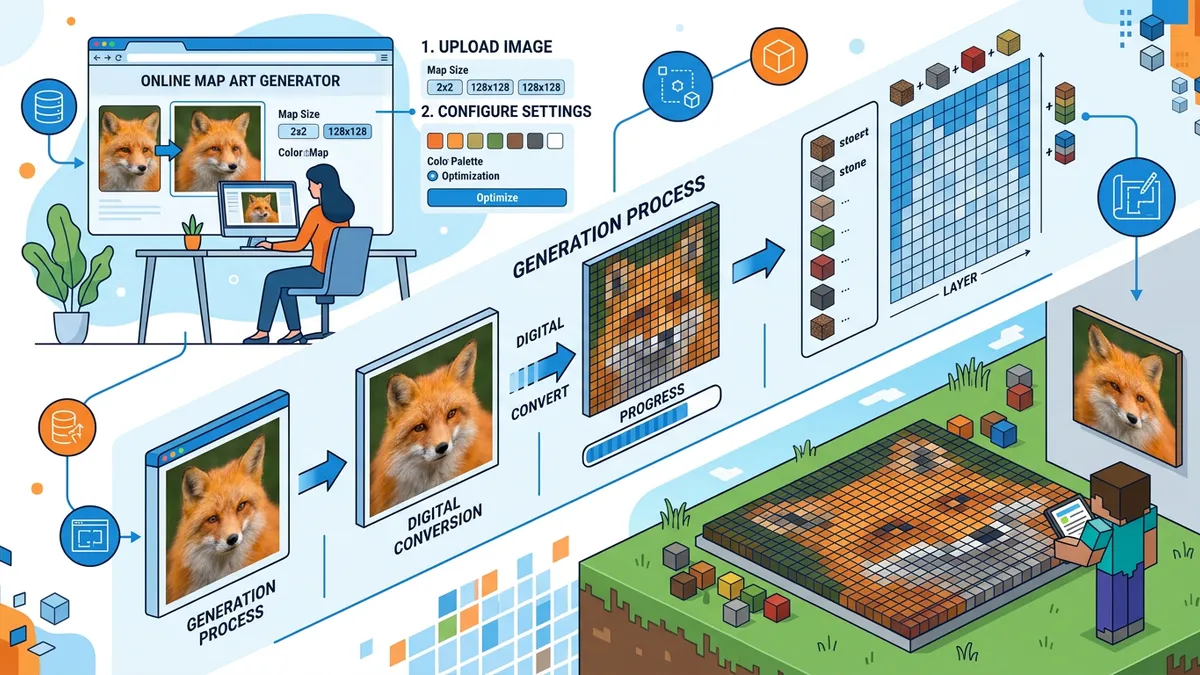
Convert any image into Minecraft map art with this free online generator. Upload a PNG, JPG, or WebP image and the tool maps every pixel to the closest Minecraft block color from a 43-color palette. Choose from 1x1 (128×128), 2x2 (256×256), 3x3 (384×384), or 4x4 (512×512) map sizes. Enable Floyd-Steinberg dithering for smoother gradients. View block statistics, download the mapped image as PNG, and see exactly which blocks you need to build your map art in-game.

Minecraft Map Art Generator Features

  • 43-color Minecraft palette
  • Image to block converter
  • Floyd-Steinberg dithering
  • 1x1 to 4x4 map sizes
  • Real-time preview
  • Block type breakdown
  • PNG download
  • Color palette visualization
  • Supports PNG, JPG, WebP
  • No download or signup
Map art is one of Minecraft's most impressive creative features — building flat pixel art on the ground that, when viewed through a cartography table and map, displays a custom image. The challenge? Manually converting images to Minecraft's limited block palette is extremely tedious. Our free Minecraft Map Art Generator does it instantly: upload any image, and the tool converts every pixel to the closest matching Minecraft block from a 43-color palette.

How to Use the Minecraft Map Art Generator

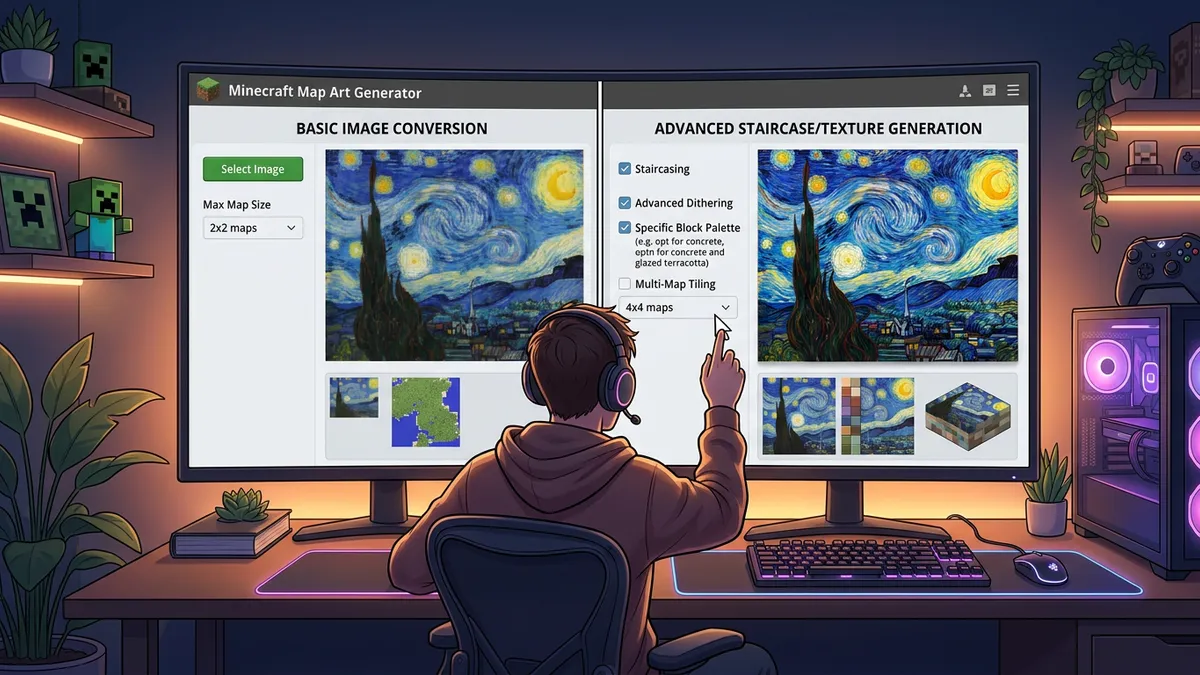
Minecraft Map Art Generator showing original and mapped preview side by side

Step 1 — Upload Your Image

Click the upload area in the sidebar and select any image file (PNG, JPG, WebP). The tool accepts any resolution — it automatically resizes to match the selected map size.

Step 2 — Choose Map Size

Select from four sizes:

  • 1x1 — 128×128 blocks (16,384 total). A single in-game map.
  • 2x2 — 256×256 blocks (65,536 total). Four maps arranged in a 2×2 grid.
  • 3x3 — 384×384 blocks (147,456 total). Nine maps — suitable for detailed art.
  • 4x4 — 512×512 blocks (262,144 total). Sixteen maps — maximum detail.

Step 3 — Enable Dithering (Optional)

Toggle Floyd-Steinberg dithering for smoother color transitions. Dithering adds subtle pixel noise to simulate colors that don't exist in Minecraft's palette. This is especially useful for photographs and images with gradients.

Step 4 — Review & Download

Compare the original image with the mapped preview side by side. The sidebar shows total block count, unique block types used, and a ranked list of the most-used blocks. Click Download PNG to save the mapped image.

How to Build Map Art in Minecraft

After generating your map art preview, here's how to build it in-game:

1. Find a Flat Area

Map art must be built on flat land — each pixel corresponds to one block. Choose a flat biome (plains, desert) or flatten an area with /fill. The build area for a 1x1 map is 128×128 blocks starting from a map's corner.

2. Gather Materials

Check the Block Stats panel in the sidebar to see exactly how many of each block type you need. For survival mode, this helps you plan your resource gathering. For creative mode, use the block names to quickly find them in your inventory.

3. Build Flat

Map art is viewed from above on maps, so build everything at the same Y-level. Place blocks in rows, following the pixelated preview. Start from one corner and work systematically across each row.

4. Create a Map

Craft a map (paper + compass) while standing on your build. The map automatically captures the blocks below. For multi-map art (2x2, 3x3, 4x4), you'll need multiple maps — one for each section. Use a cartography table to lock maps.

5. Display Your Art

Place the completed map(s) in item frames on a wall. Adjacent item frames with maps create a seamless mosaic, displaying your original image in pixel art form.

Understanding Minecraft's Map Color Palette

Minecraft map art color palette showing all 43 block colors

Minecraft maps use a fixed color palette — each block type maps to exactly one color on the map. Our generator uses 43 base colors from Minecraft's map rendering system:

  • Natural blocks — Grass, sand, dirt, stone, wood, clay
  • Wool/concrete — All 16 dye colors available
  • Ore blocks — Gold, diamond, lapis, iron, emerald
  • Nether blocks — Crimson, warped, netherrack
  • Special blocks — Sculk, deepslate, raw iron

Important: Map colors have 4 brightness variants (dark, normal, light, darkest) based on block height differences. Our generator uses the base colors for flat builds. If you build with height variations, the colors will shift slightly — this is an advanced technique called shading or staircasing.

Map Art Tips and Tricks

  • Use dithering for photos — Floyd-Steinberg dithering dramatically improves photographic images by simulating gradient colors through pixel mixing.
  • Simplify your source image — High-contrast images with fewer colors work best. Consider posterizing your image in an image editor before uploading.
  • Start with 1x1 — A 128×128 block build takes 16,384 blocks. Start small to learn the process before attempting 4x4 (262,144 blocks).
  • Use WorldEdit for large builds — For 3x3+ maps, consider using WorldEdit or Litematica to place blocks from a schematic rather than manually.
  • Lock your maps — After creating map art, use a cartography table with glass pane to lock the map. This prevents it from updating if the terrain changes.
  • Beware of biome tint — Grass and foliage blocks change color based on biome. Build in a plains or desert biome for consistent colors.

Step-by-Step Instructions

  1. 1Open the Minecraft Map Art Generator — no download, login, or mods needed.
  2. 2Upload any image file (PNG, JPG, or WebP) using the sidebar upload area.
  3. 3Select a map size: 1x1 (128px), 2x2 (256px), 3x3 (384px), or 4x4 (512px).
  4. 4Optionally enable Floyd-Steinberg dithering for smoother color gradients.
  5. 5Compare the original image with the mapped preview side by side.
  6. 6Check the Block Stats panel for total block count and material list.
  7. 7Download the mapped image as PNG to use as a building reference.
  8. 8Build the pixel art flat in Minecraft, then create a map to view it.

Minecraft Map Art Generator — Frequently Asked Questions

How many blocks does Minecraft map art need?+

A 1x1 map art requires 128×128 = 16,384 blocks. A 2x2 requires 65,536 blocks, 3x3 needs 147,456, and 4x4 needs 262,144 blocks. The Block Stats panel shows exactly how many of each type you need.

What is Floyd-Steinberg dithering?+

Floyd-Steinberg dithering is an algorithm that spreads color quantization errors to neighboring pixels. This creates a subtle pattern that simulates colors not in Minecraft's palette, making photos and gradients look much smoother when converted to blocks.

Does this work for Bedrock Edition?+

Yes! Map colors are the same in both Java and Bedrock editions. The converted image and block references work identically. The only difference is that Bedrock doesn't support Litematica for automated placement.

Can I export a schematic file for Litematica?+

Currently, the tool exports PNG images as building references. For Litematica .litematic files, use the downloaded PNG with a separate converter tool like MapartCraft or mc-map.djfun.de, which support schematic export.

Why does my map art look different from the preview?+

Two main reasons: 1) Biome tint — grass and foliage blocks change color in different biomes. Build in plains/desert for accurate colors. 2) Height shading — Minecraft maps show brightness variations based on block height. Build on flat ground for the preview to match exactly.

What's the best image resolution for map art?+

The tool automatically resizes your image to fit the map size. However, for best results, use square images at or close to the target resolution (128×128 for 1x1, 256×256 for 2x2, etc.). Larger images will be downscaled.

Share this tool: